 ## 2. Sign In or Create an Account
* Click **Start Building** and register with your email.
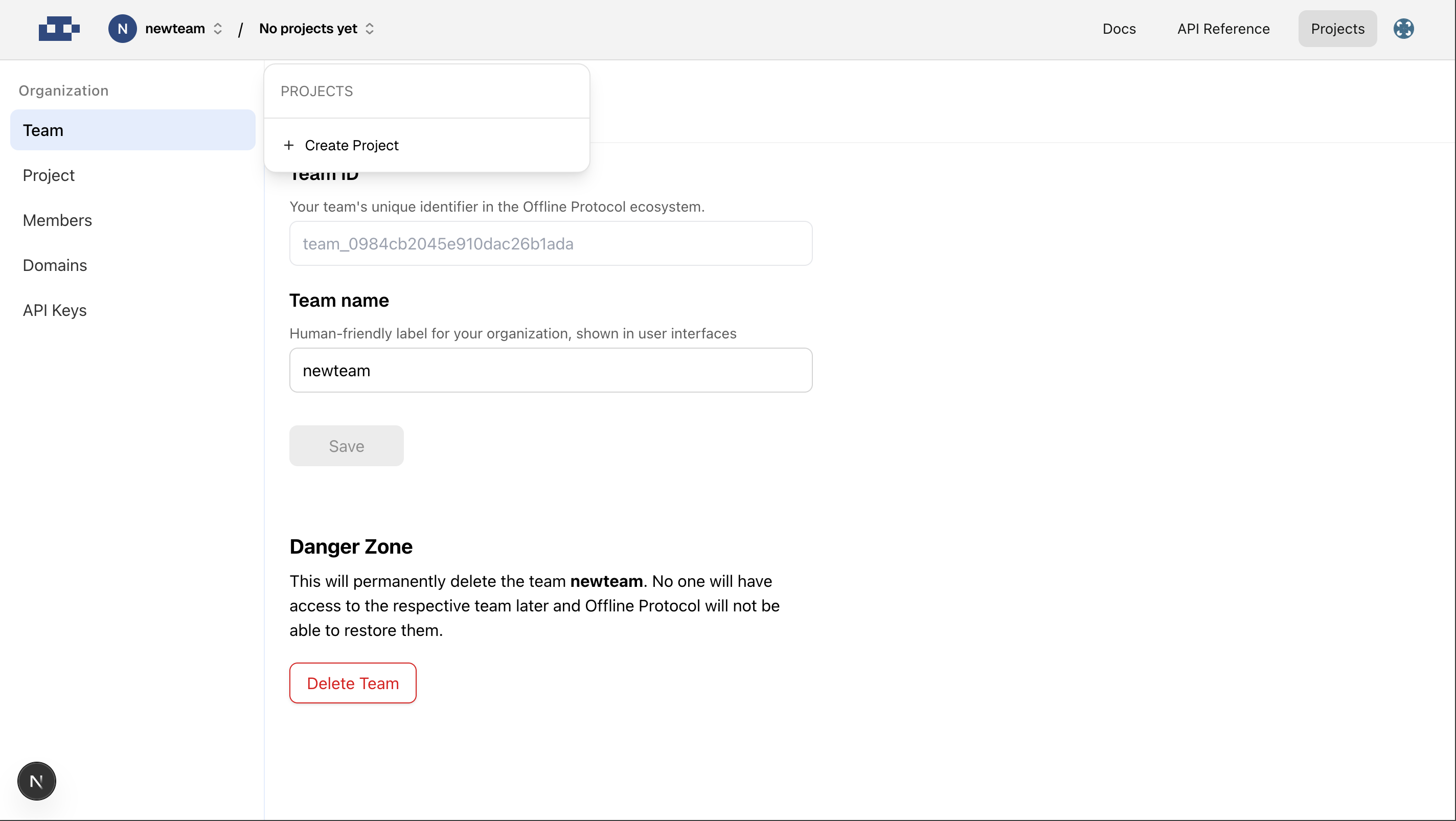
## 3. Create Your Team
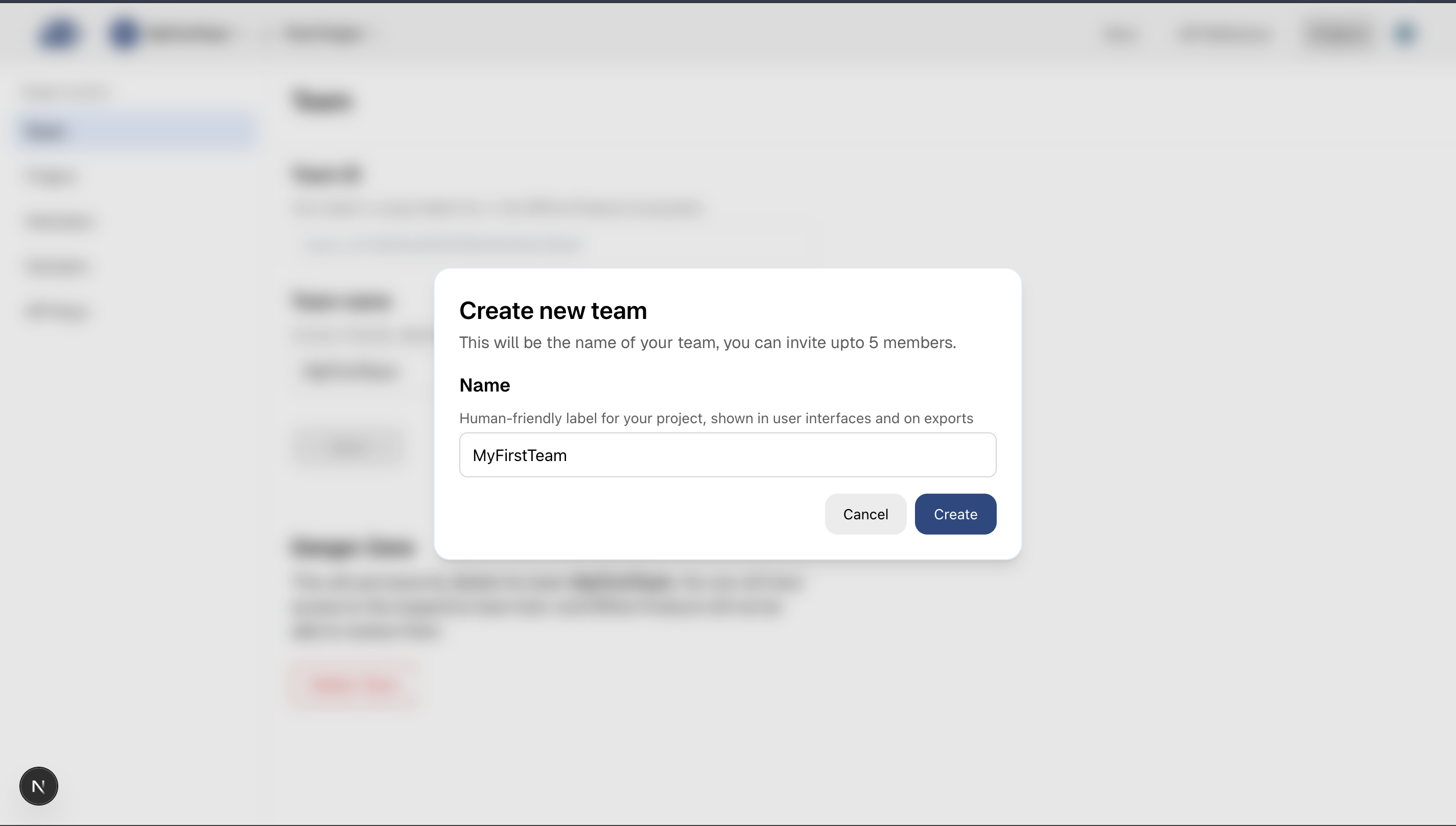
* After signing in for the first time, a popup will appear prompting you to create a team.
* Enter your team details:
* **Team Name**
* **Description** (optional)
* Click **Create Team** to continue.
## 2. Sign In or Create an Account
* Click **Start Building** and register with your email.
## 3. Create Your Team
* After signing in for the first time, a popup will appear prompting you to create a team.
* Enter your team details:
* **Team Name**
* **Description** (optional)
* Click **Create Team** to continue.
 ## 4. Create Your First Project
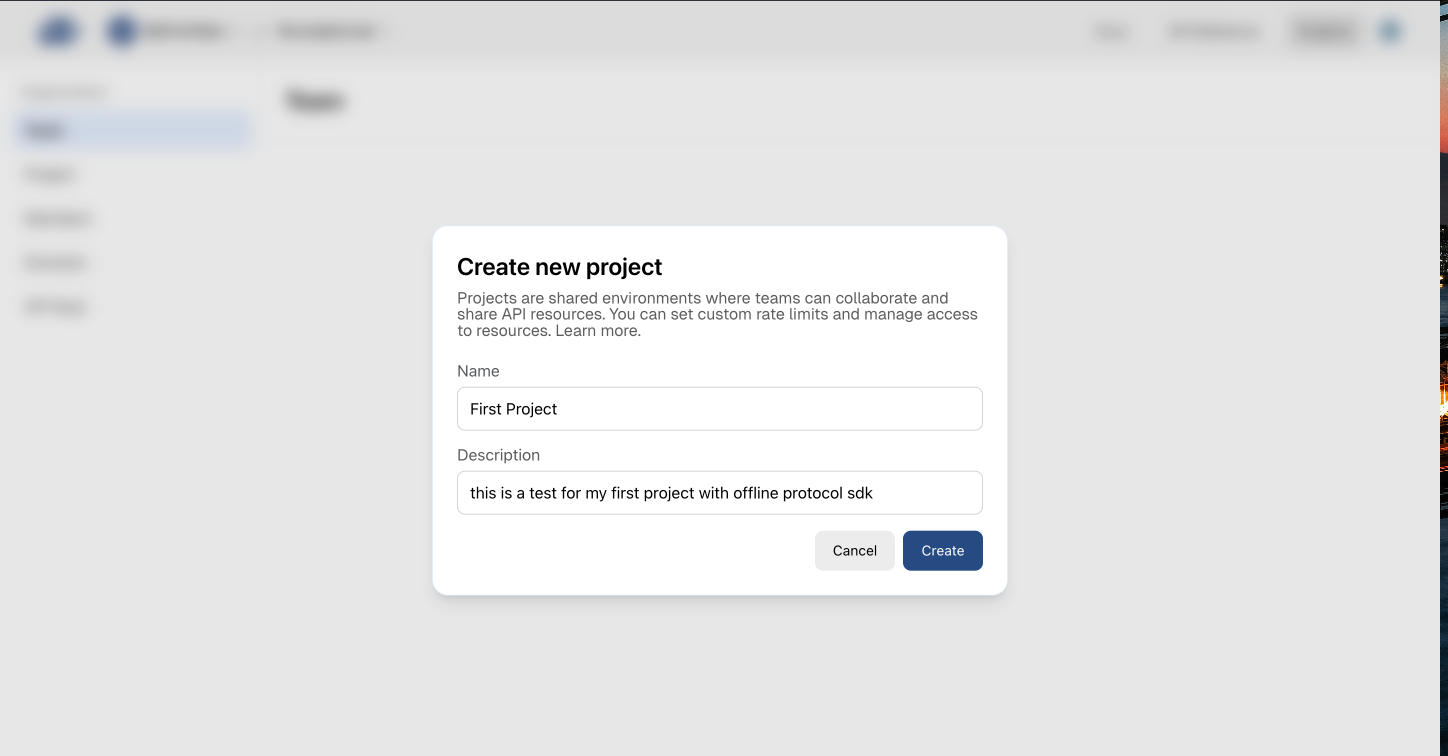
* Once your team is created, another popup will appear for project creation.
* Enter your project details:
* **Project Name**
* **Description**
* Click **Create Project**.
## 4. Create Your First Project
* Once your team is created, another popup will appear for project creation.
* Enter your project details:
* **Project Name**
* **Description**
* Click **Create Project**.
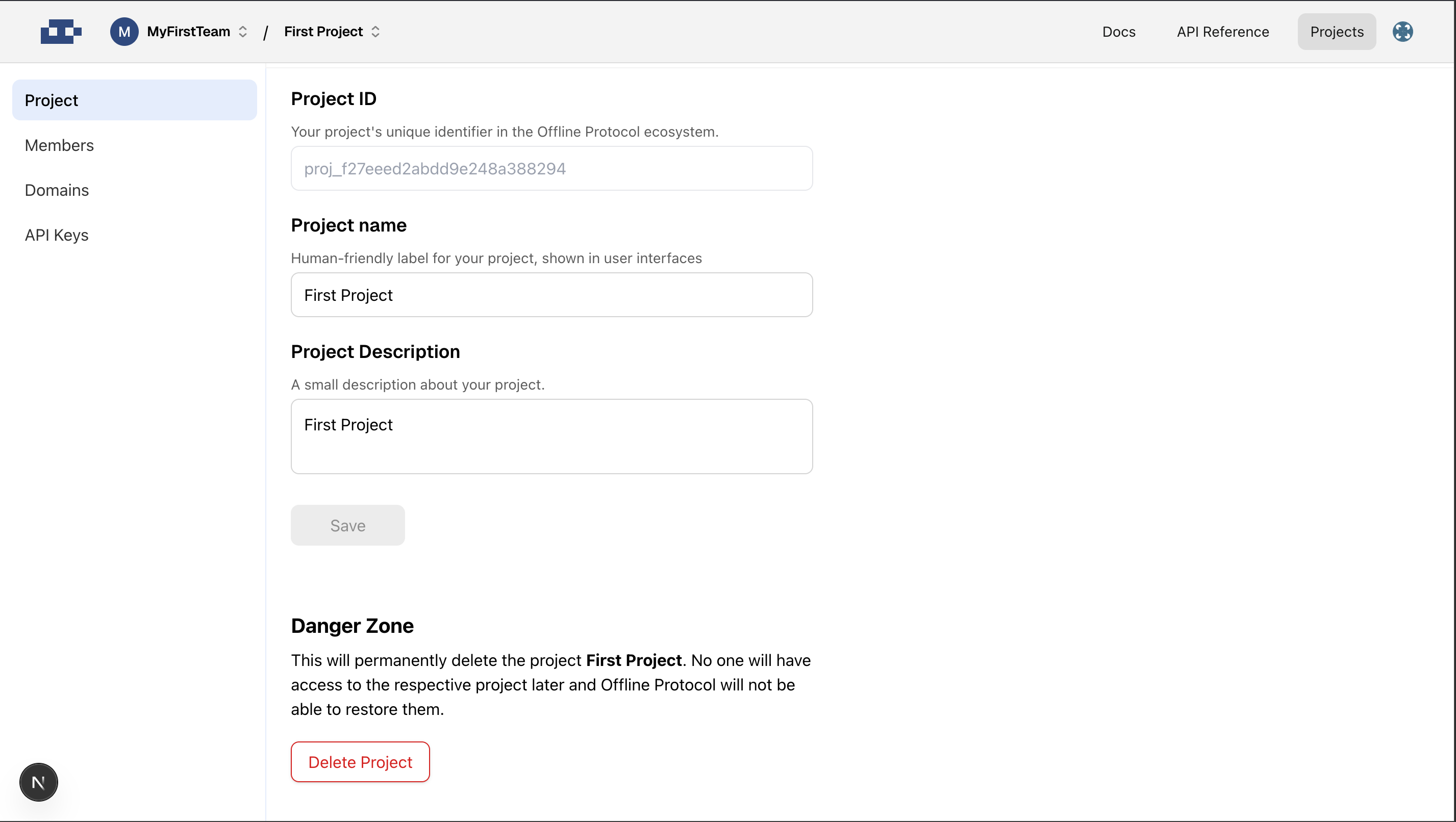
 * A project with a unique **Project ID** will be created automatically.
 ## 5. Generate a New API Key
1. Go to the **API Keys** tab.
2. Click **Create New API Key**.
3. Fill in the details:
* **Alias** (e.g., "Staging App", "Production")
* **Project** (auto-selected)
4. Click **Create**.
Your new API key will now be listed under the **API Keys** tab.
## 5. Generate a New API Key
1. Go to the **API Keys** tab.
2. Click **Create New API Key**.
3. Fill in the details:
* **Alias** (e.g., "Staging App", "Production")
* **Project** (auto-selected)
4. Click **Create**.
Your new API key will now be listed under the **API Keys** tab.
 ## 6. Use the API Key Securely